Guide for agents
Condo69, step by step
From the invitation to your first listing and your first buyer. Every picture is the real screen; the data in them is a sample. The full rules are in the terms and listing rules.
1Joining Condo69
There are two ways in: an invitation from an administrator or from your agency's owner, or a request to join that an administrator accepts.
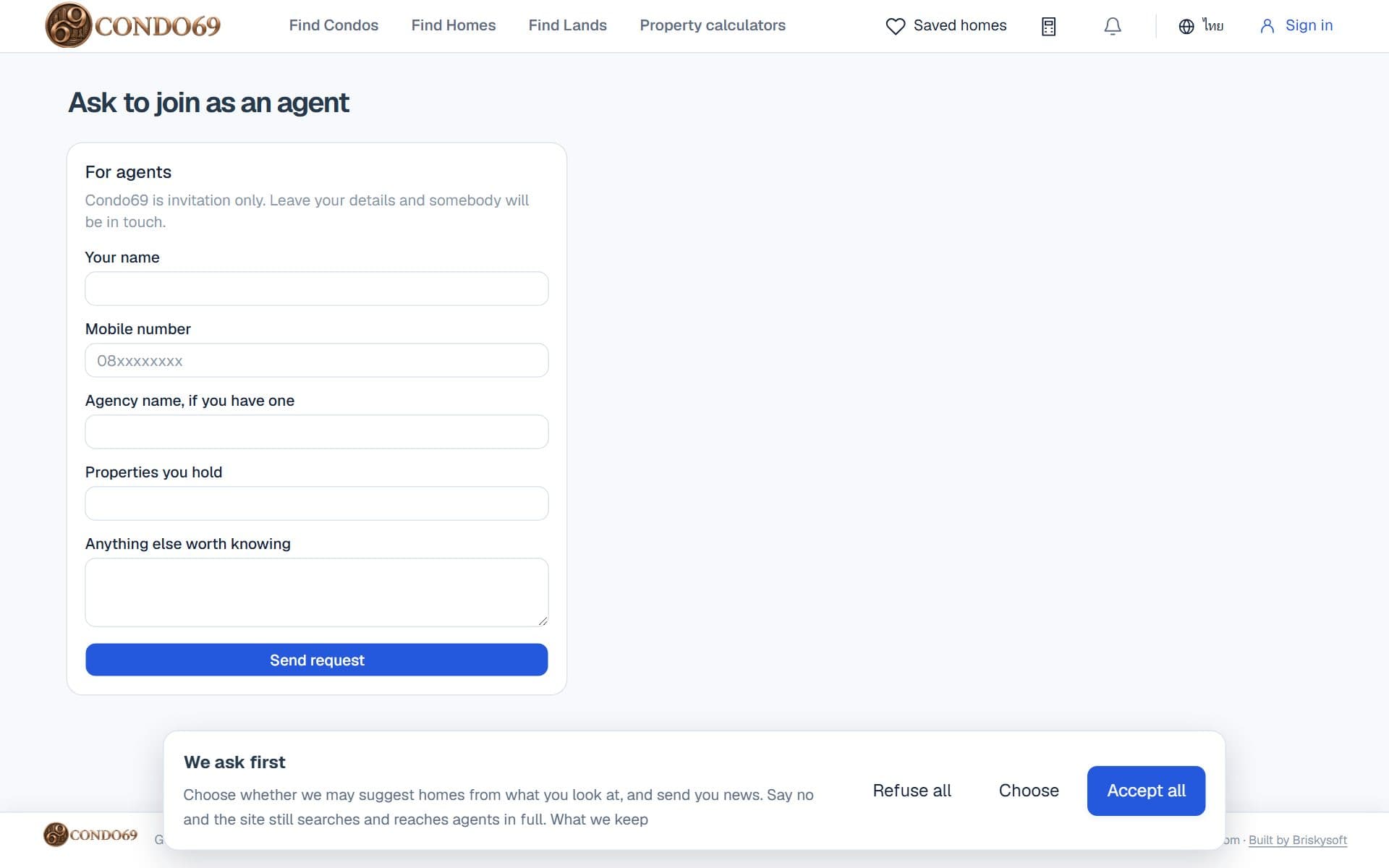
- Without an invitation, open «Ask to join», fill in your name, mobile number, agency and how many properties you handle, and send it.
- An administrator looks at the request. Once accepted, an invitation link is sent to the mobile number you gave.
2Taking up the invitation
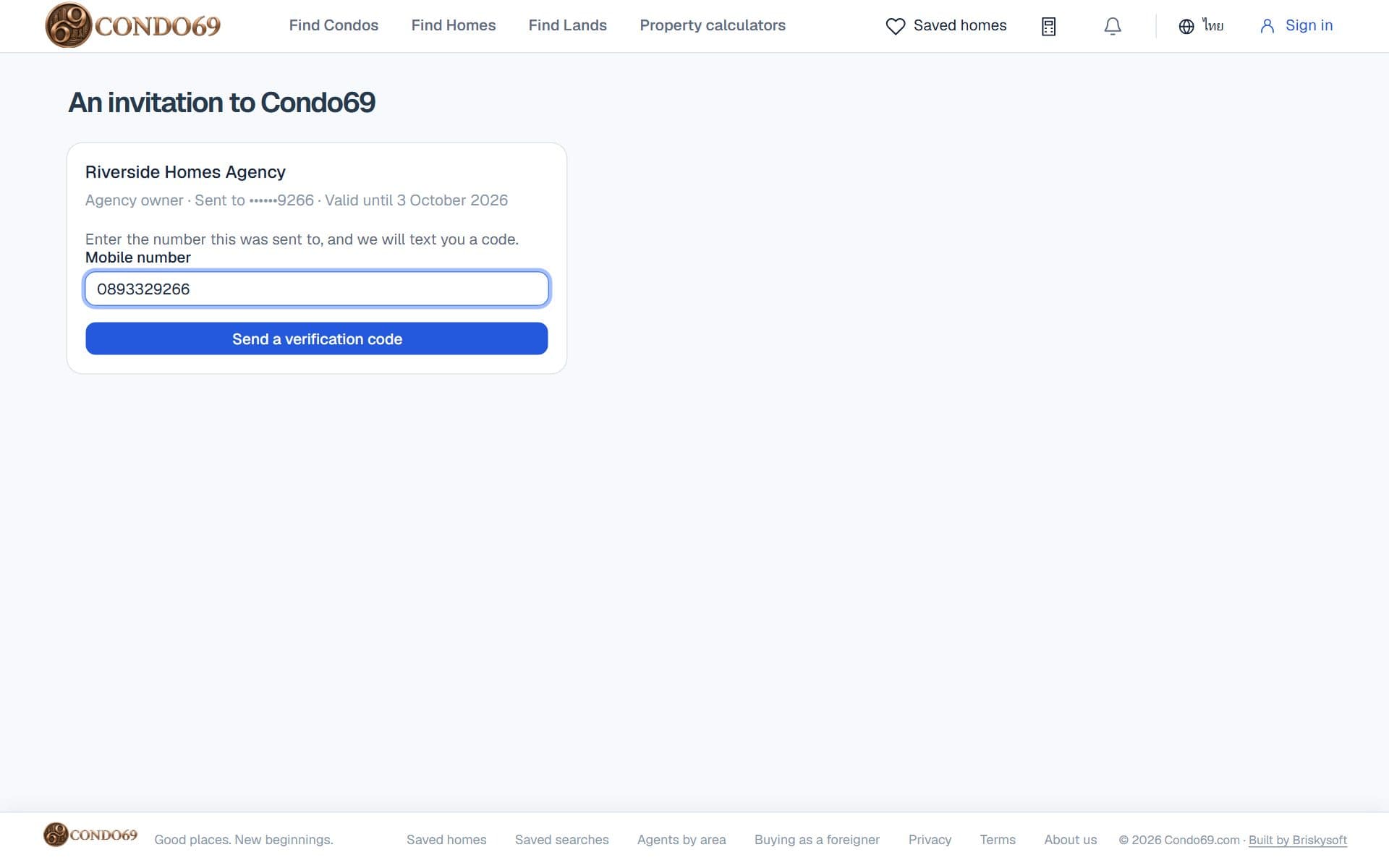
- Open the invitation link. It shows the agency, your role, the number it was sent to (partly hidden) and when the link runs out.
- Type the mobile number the invitation was sent to and press «Send a verification code».
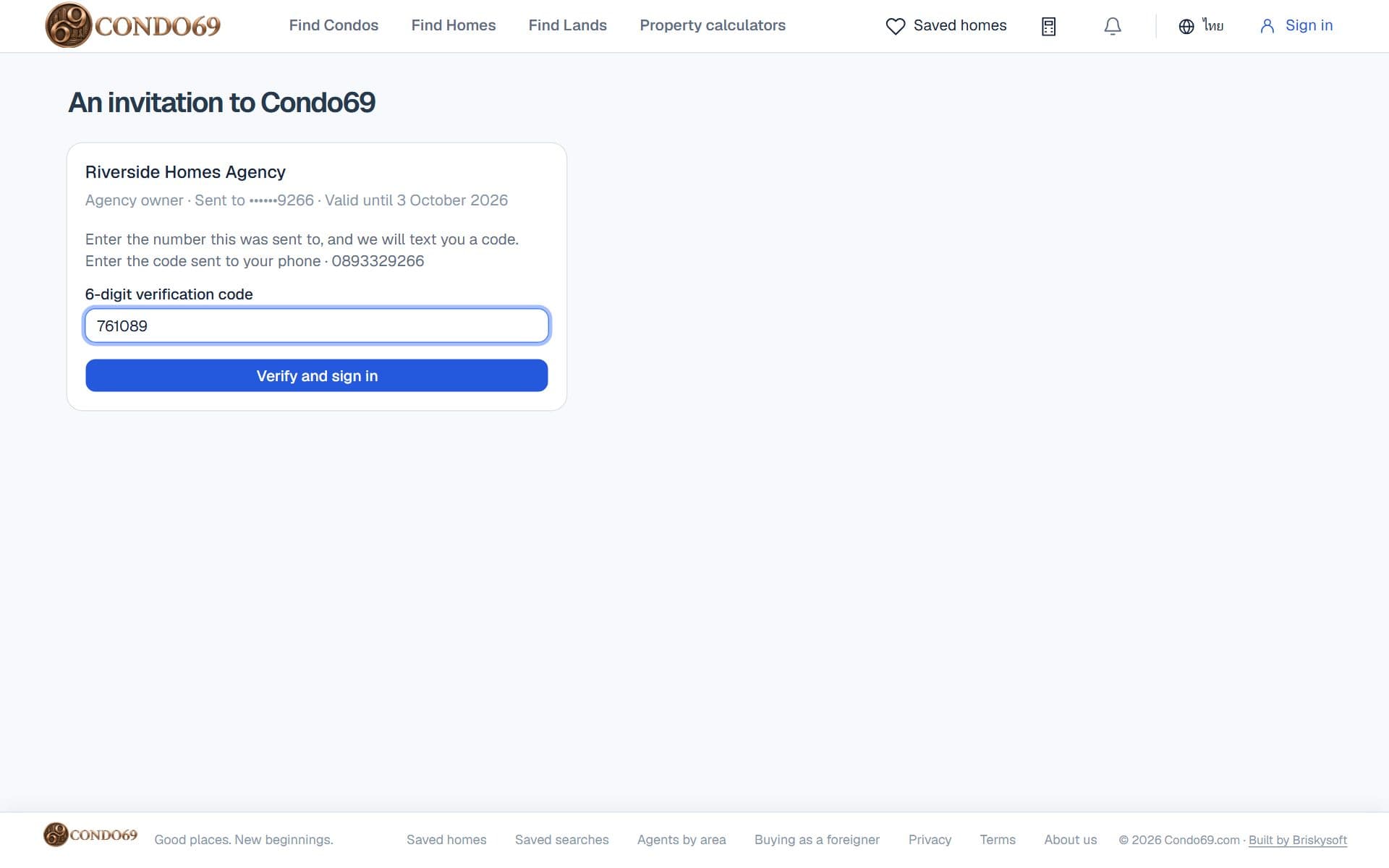
- Type the 6-digit code from the text message and press «Verify and sign in». The phone is used this once only.
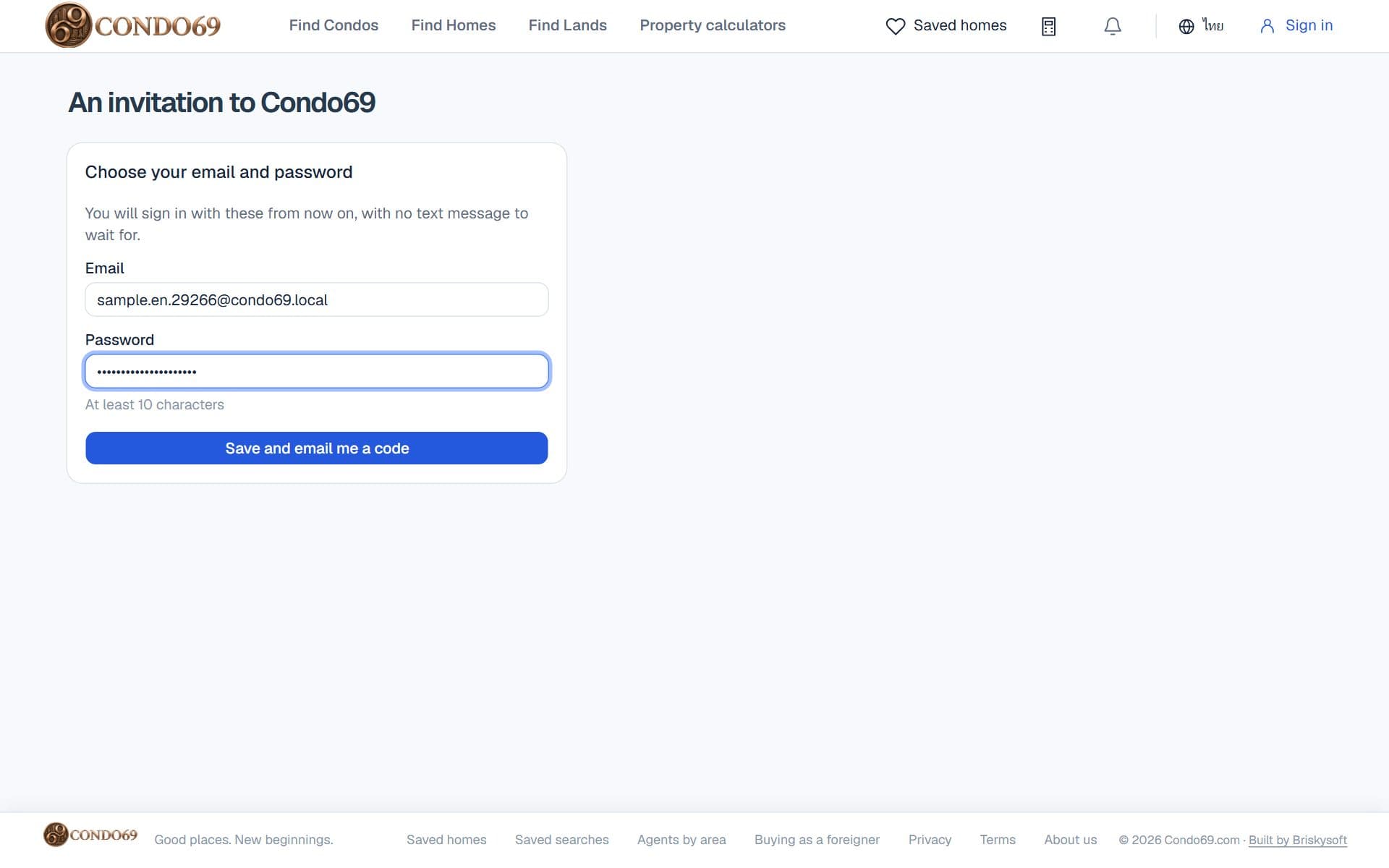
- Choose the email and password you will sign in with from now on (a password of … characters or more) and press «Save and email me a code».
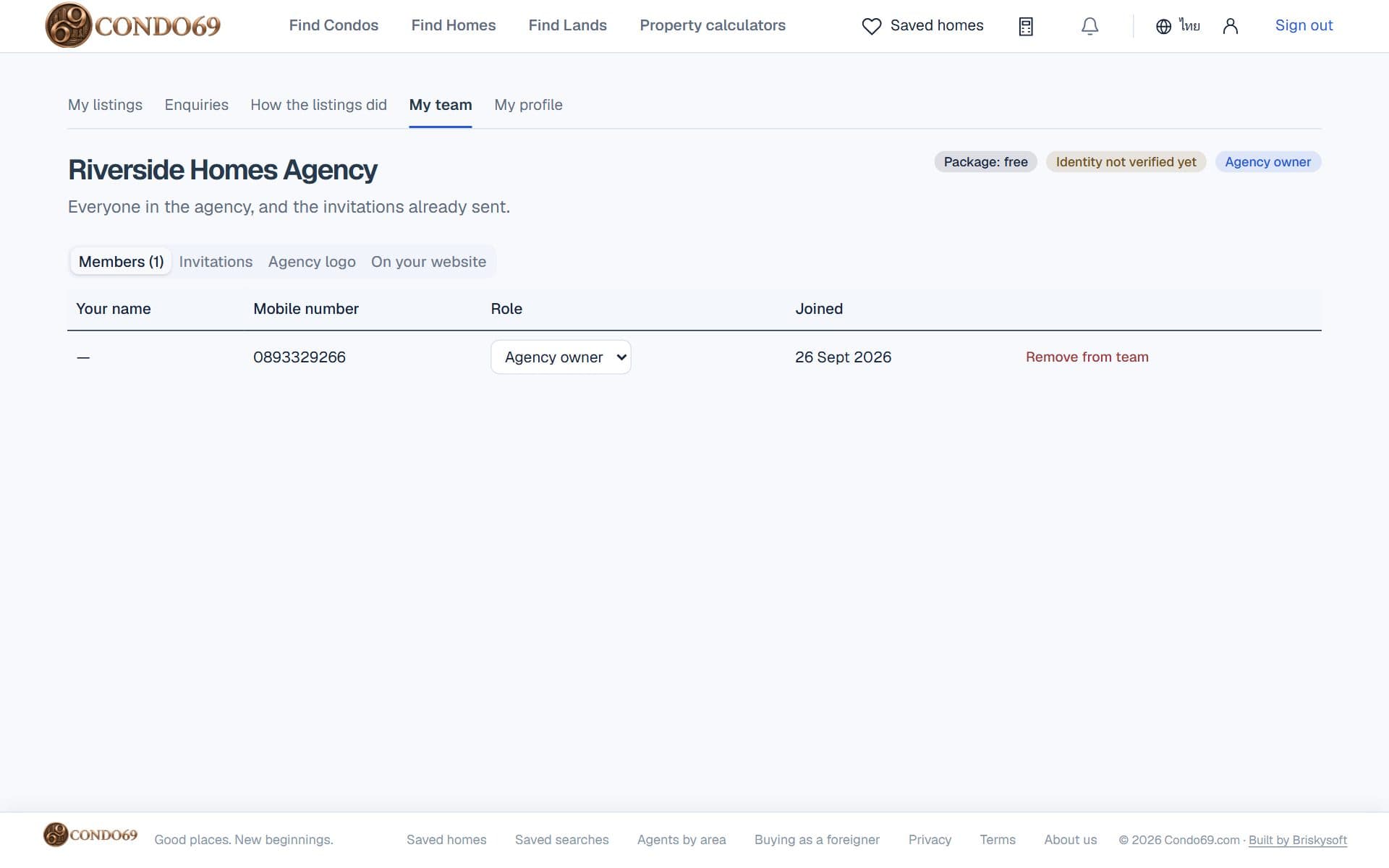
- Open your email, type the 6-digit code, and press «Confirm the code». You arrive on your team's page.
3Signing in next time
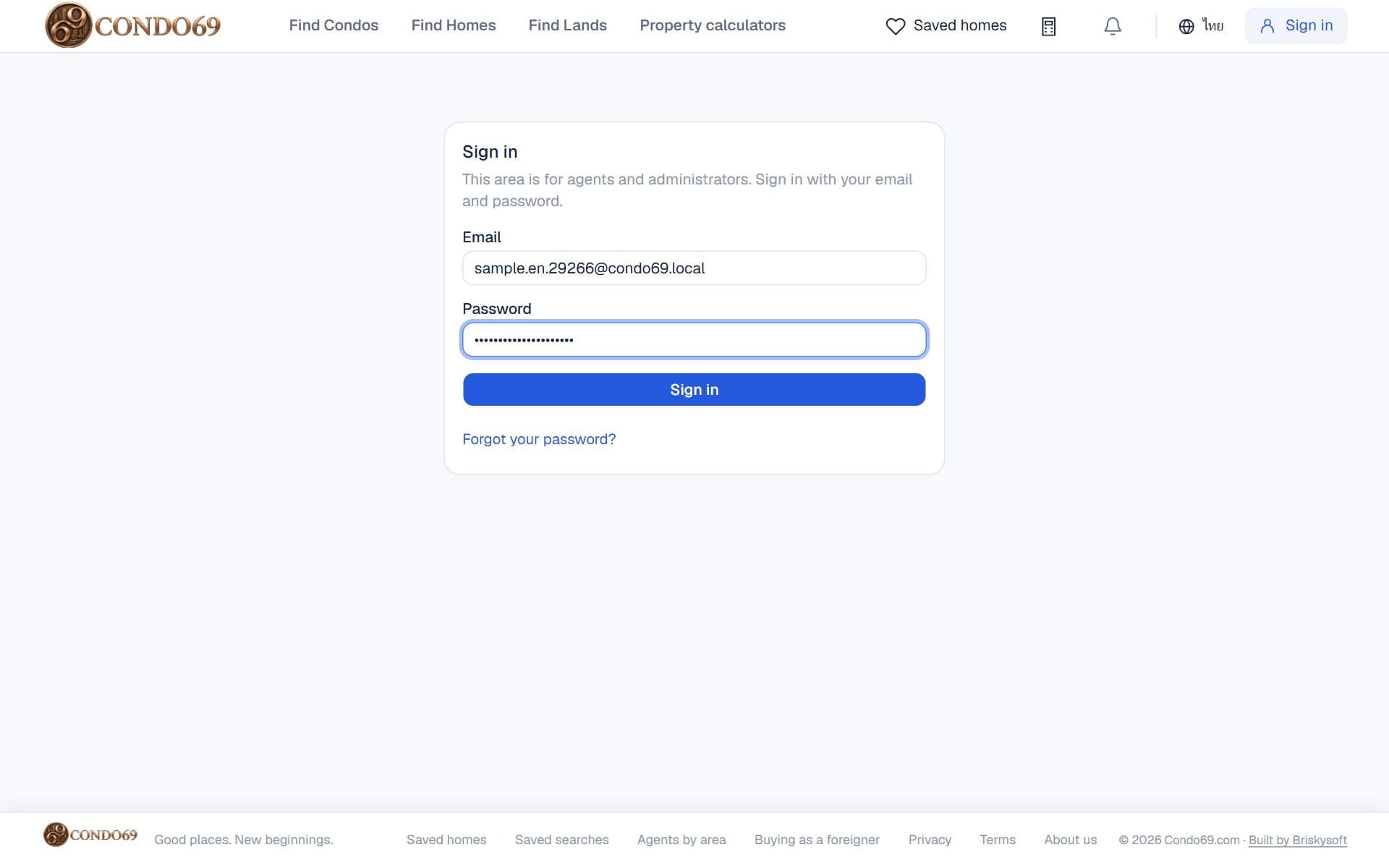
- Open any agent page, such as «My listings». If you are not signed in you see the email and password boxes; or press «Sign in» at the top right.
- If you have not signed in for more than … days, a code is also sent to your email.
- Forgot the password? Press «Forgot your password?», give your email and set a new one with the code sent there. Every other device is signed out.
4Your listings
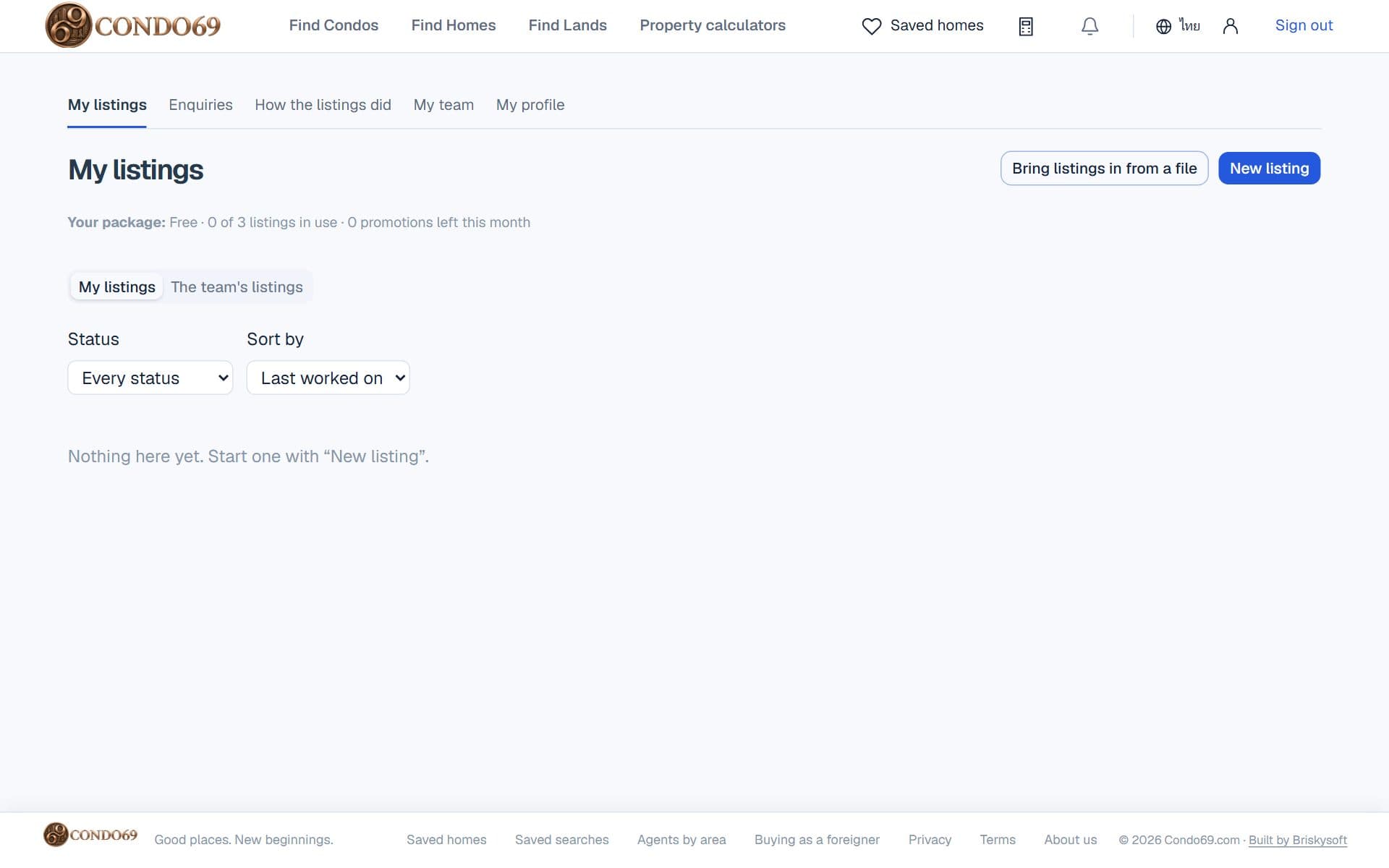
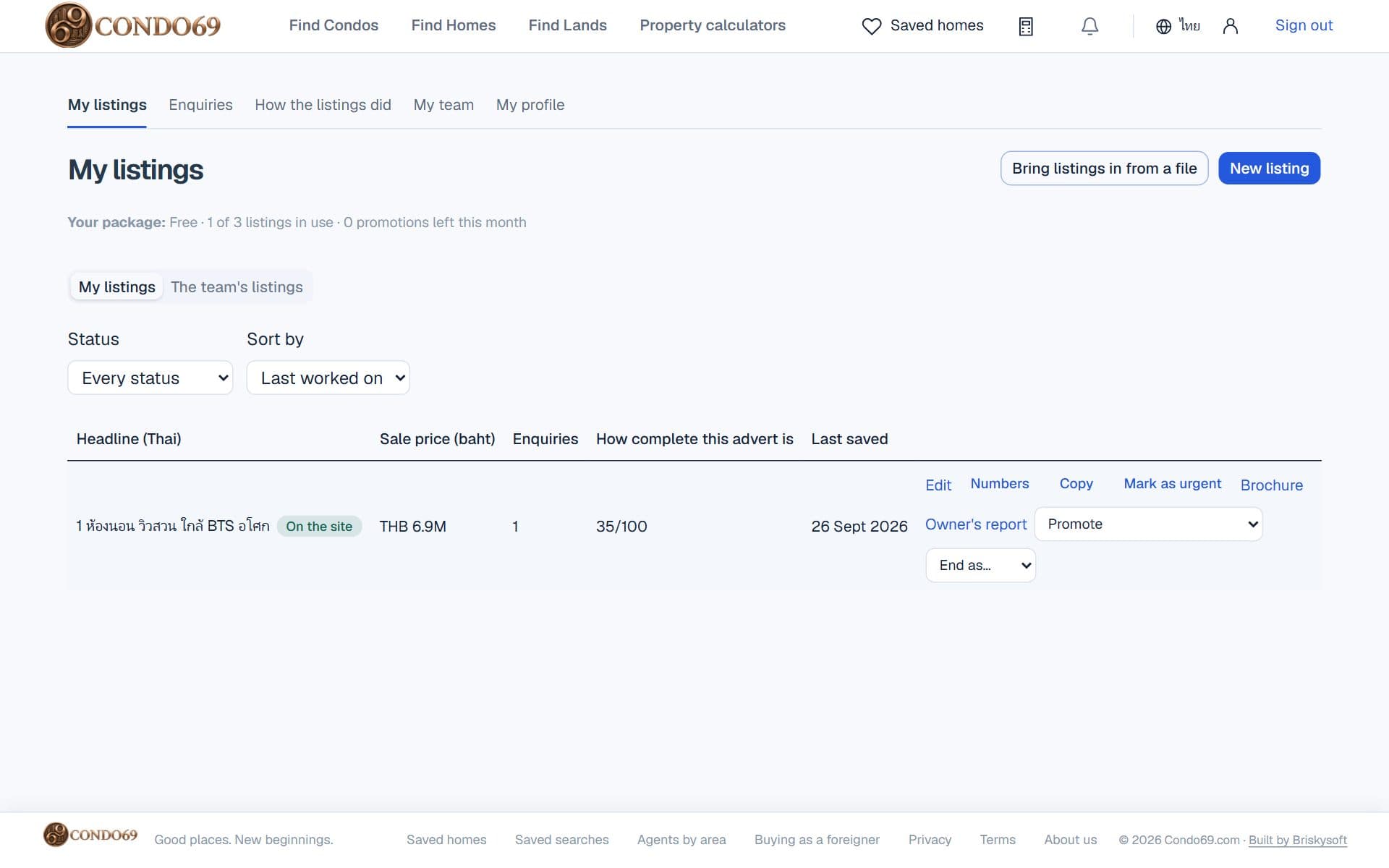
- The top line says your package, how many listings you use and the promotions left this month.
- Switch between «My listings» and «The team's listings», filter by status and choose the order.
- Start one with «New listing», or bring many in at once with «Bring listings in from a file».
5Writing a listing, step by step
The form has five steps and saves itself at every step; you can always come back to it.
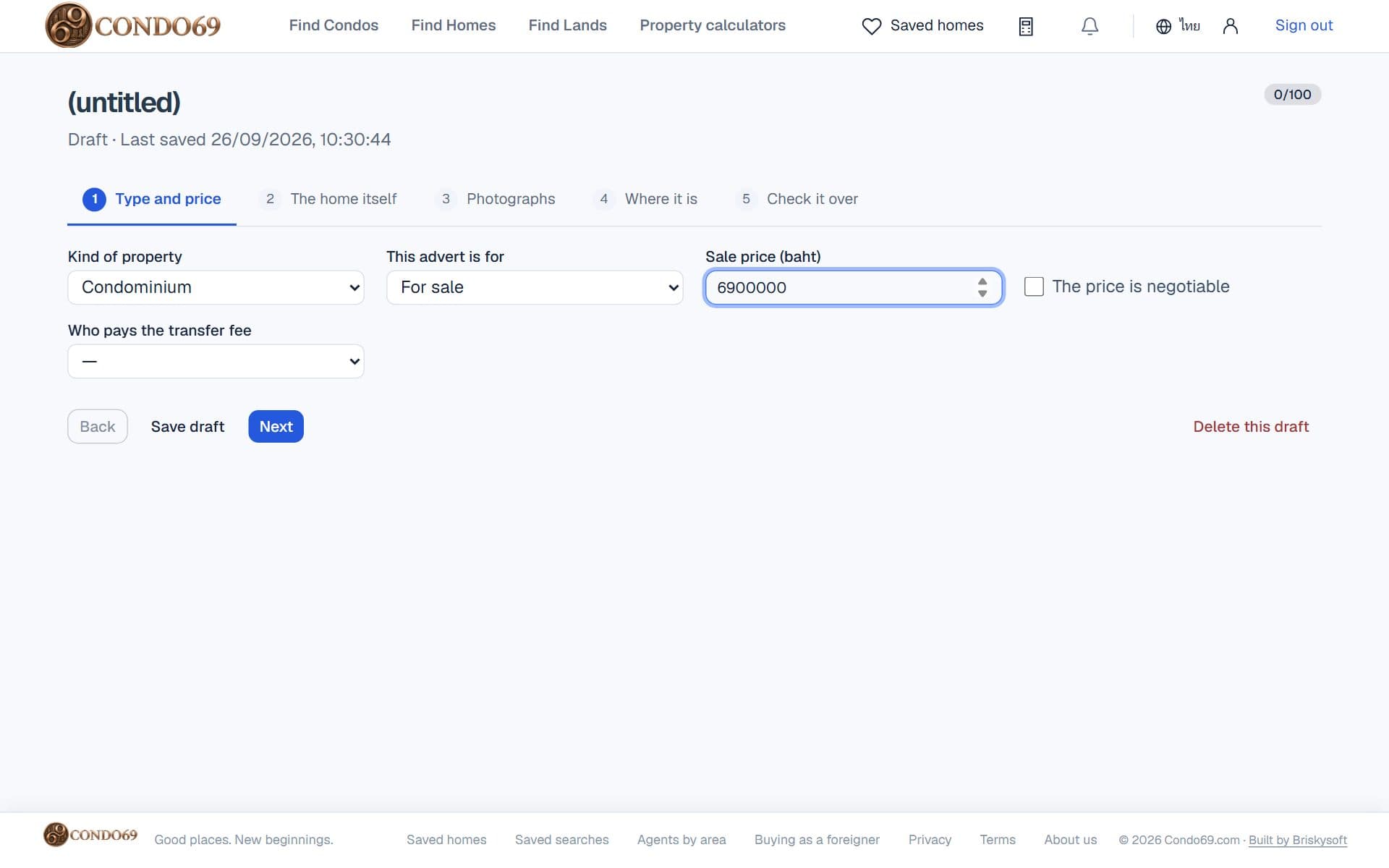
- Step 1, type and price: sale or rent, what kind of property, and the price.
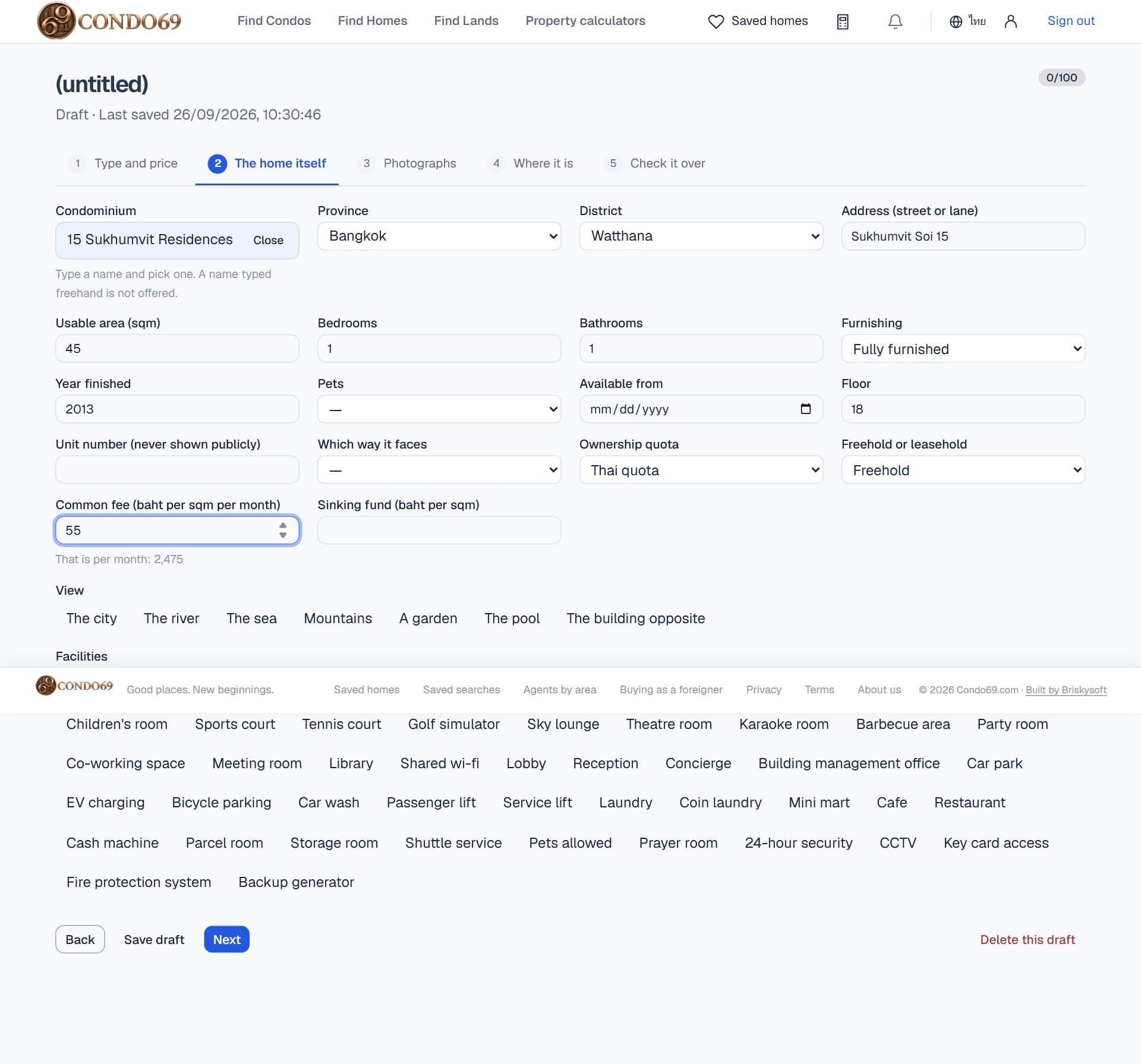
- Step 2, the home itself: type the building's name and pick it from the list, then the size, bedrooms, bathrooms, floor, furnishing, ownership and common fee. The unit number is never shown publicly.
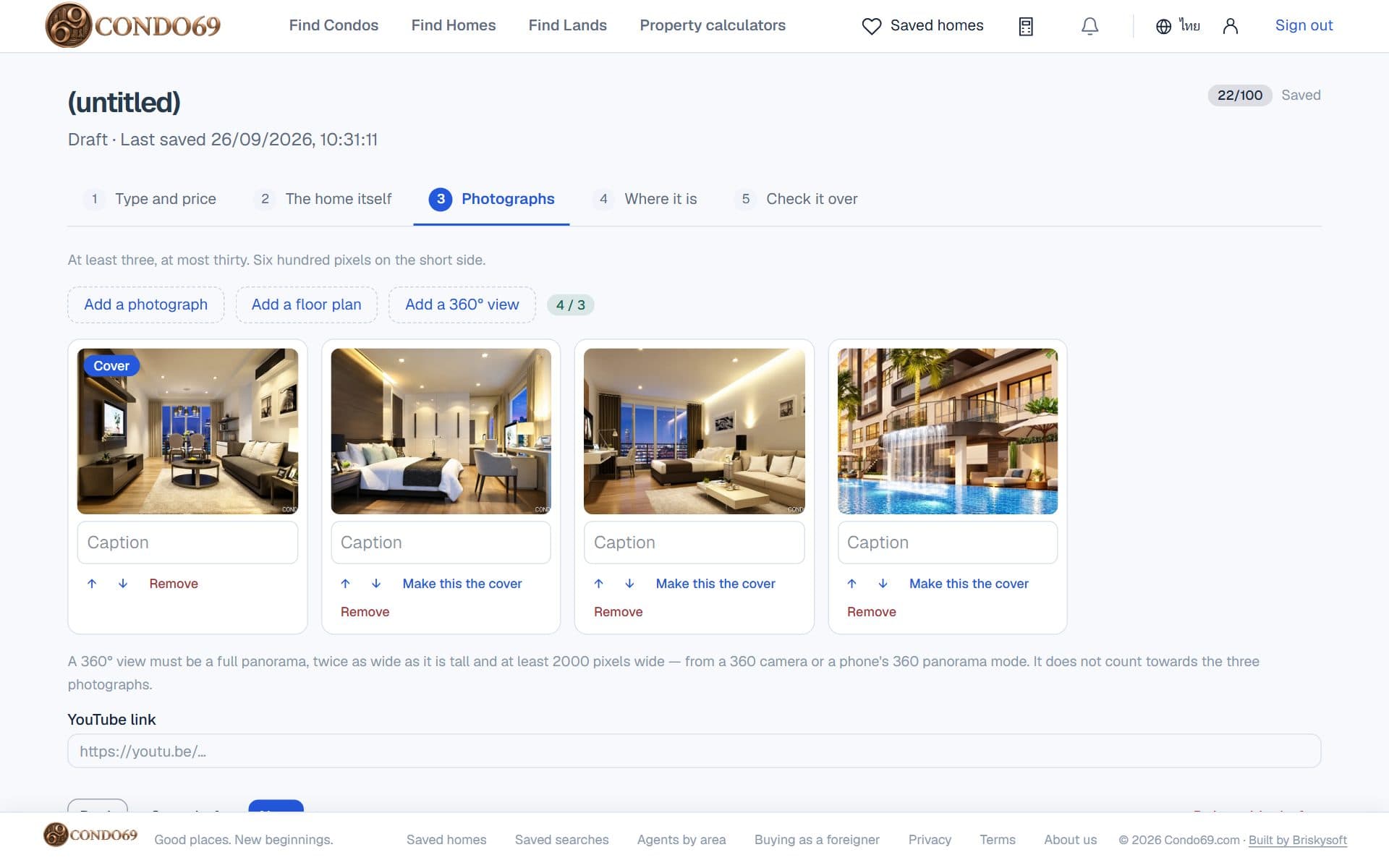
- Step 3, photographs: press «Add photos» and choose … to … (… MB each at most, … pixels on the short side at least). The first is the cover; reorder, caption, and add a floor plan, a 360° picture or a YouTube link if you have them.
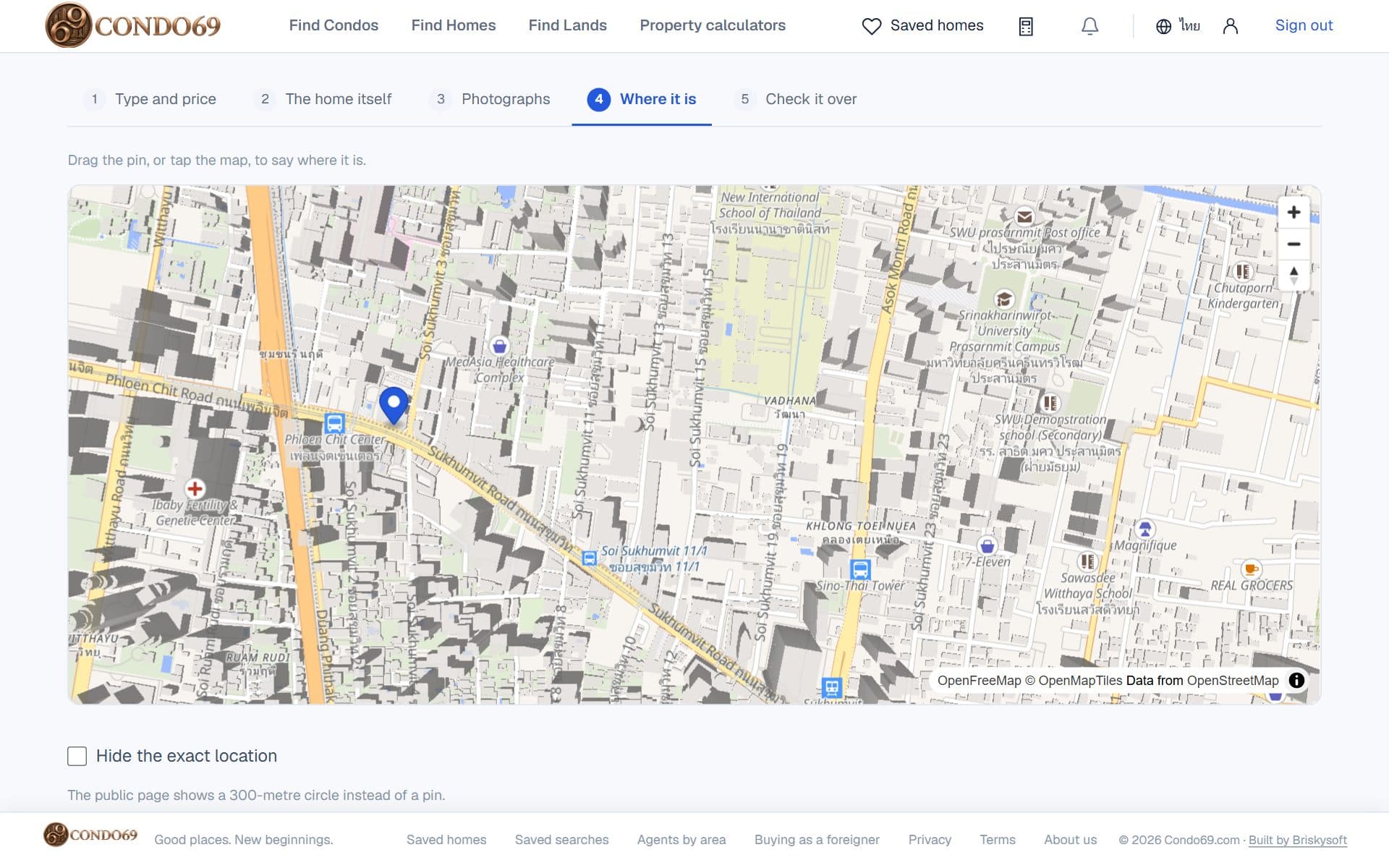
- Step 4, where it is: click the map to put the pin on the property. A pin far from the building is looked at again.
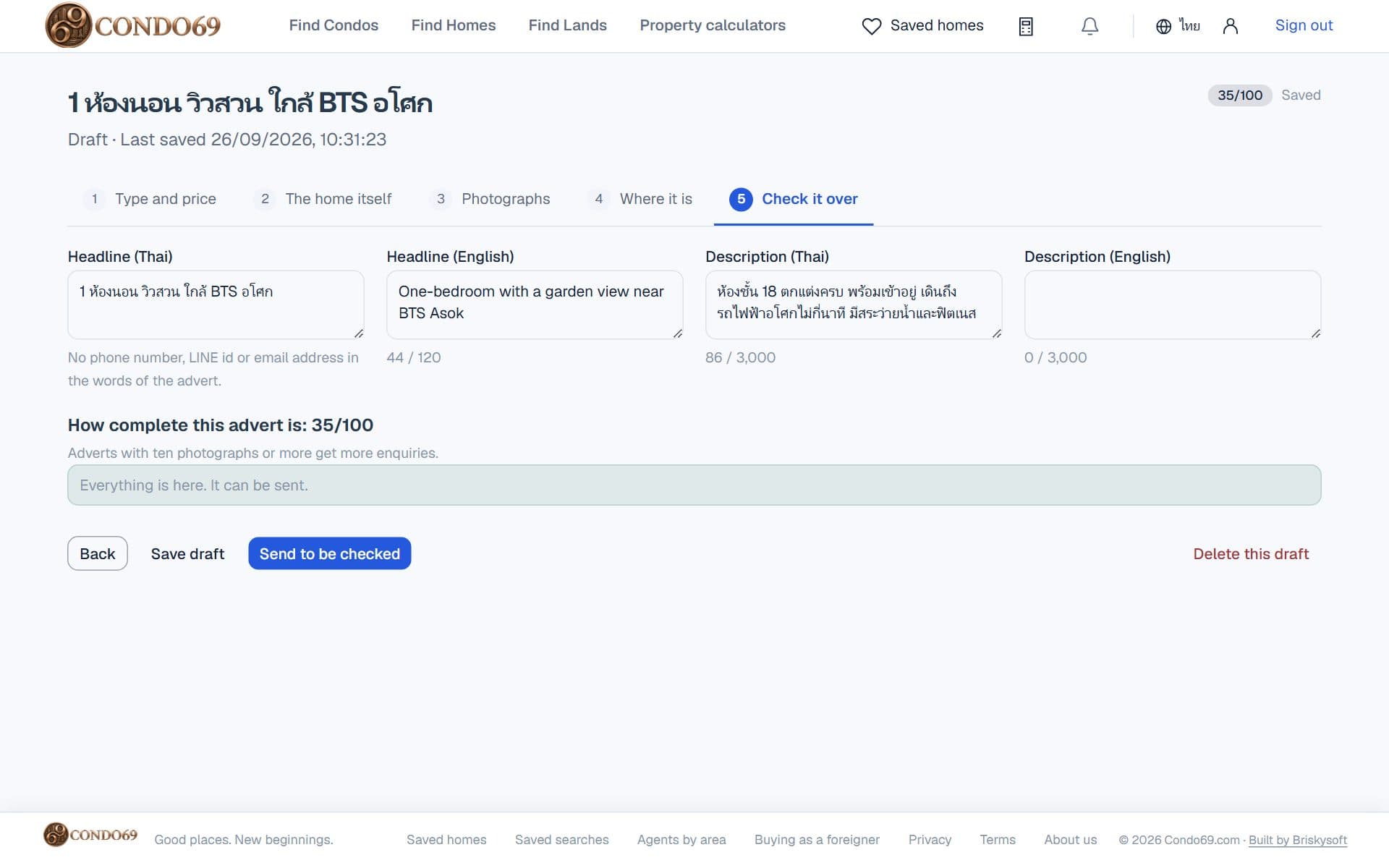
- Step 5, check it over: write the headline and description (Thai needed, English if you have it) with no phone number, LINE or email in them, look at the completeness score, and press «Send to be checked».
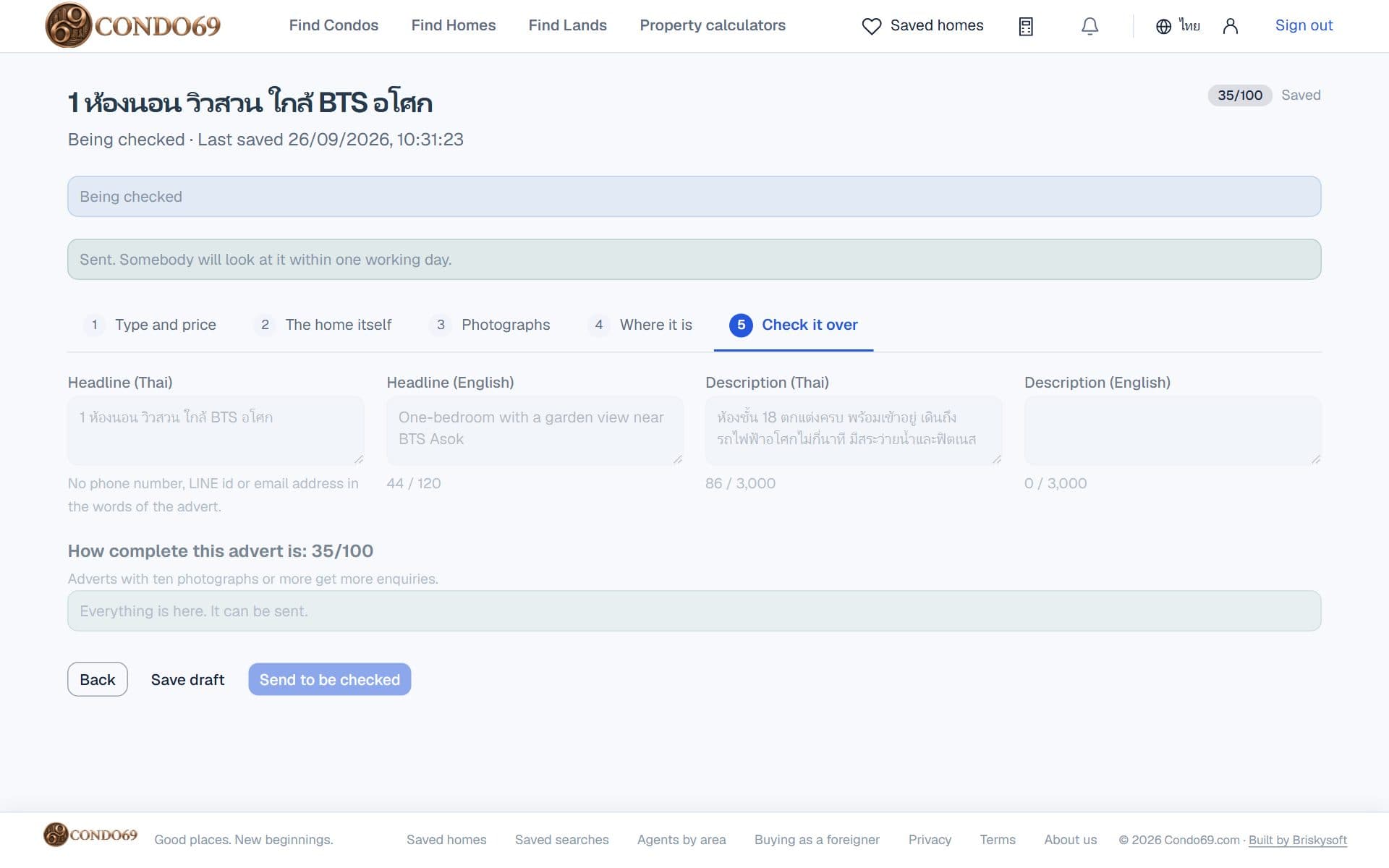
Listings with ten photographs or more get more enquiries. The team checks within one working day; one not accepted comes back with the reason to put right.
6Once it is on the site
- A listing stays up for … days; renew it with «Renew» in its last ….
- On each row: «Edit» · «Numbers» (views and enquiries) · «Copy» · mark it as an urgent sale · a printable «Brochure» · the «Owner's report» · «Promote».
- Sold or let? Choose «Close as…» straight away: it leaves the site and stays on your page.
- A draft left untouched for … days is removed, with a warning … days before.
7Enquiries
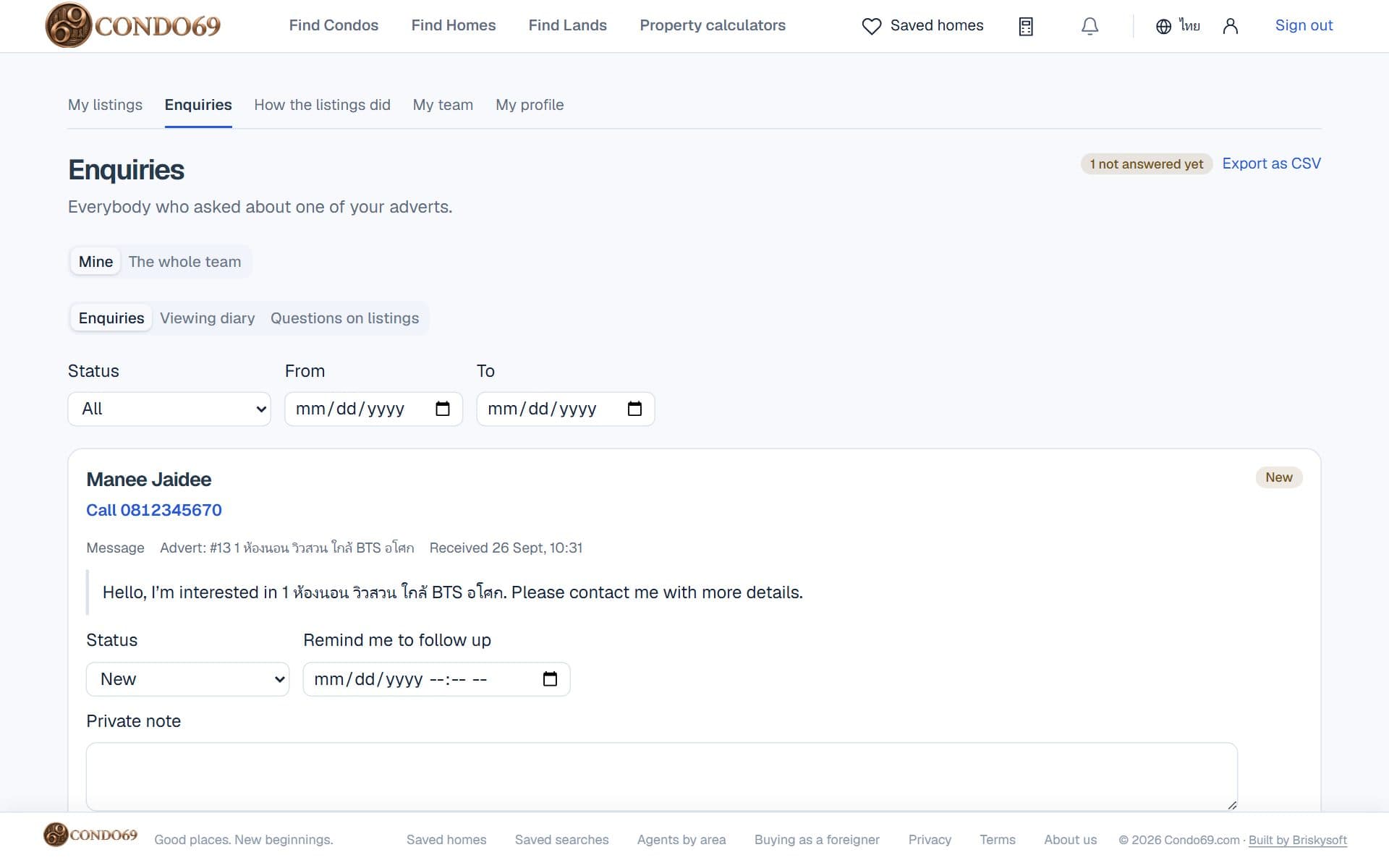
- Every message, viewing request and question from a buyer arrives here, with their number and the listing they asked about.
- Change the status once you have called, set a follow-up reminder, and keep a private note the buyer never sees.
- Owners and team leads can see «The team's» and hand a buyer to a teammate · export to a CSV file.
- Use a buyer's details only to reply about the home they asked about.
8Team, profile and results
- «My team»: the owner invites members with «Invite someone», sets their role (agency owner · team lead · agent) and adds the logo.
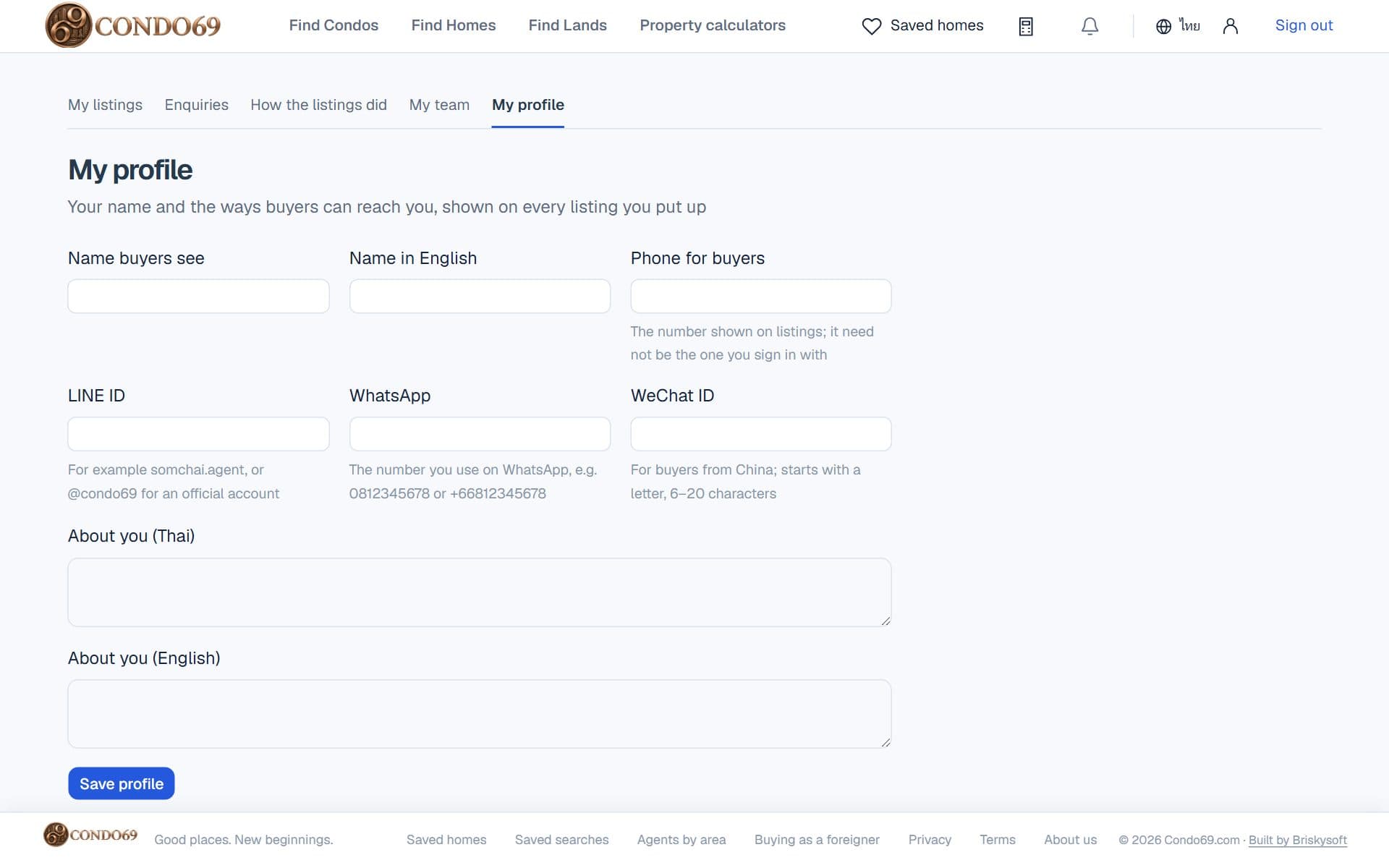
- «My profile»: your name, photo, the areas you cover and the languages you speak, as buyers see them on your agent page.
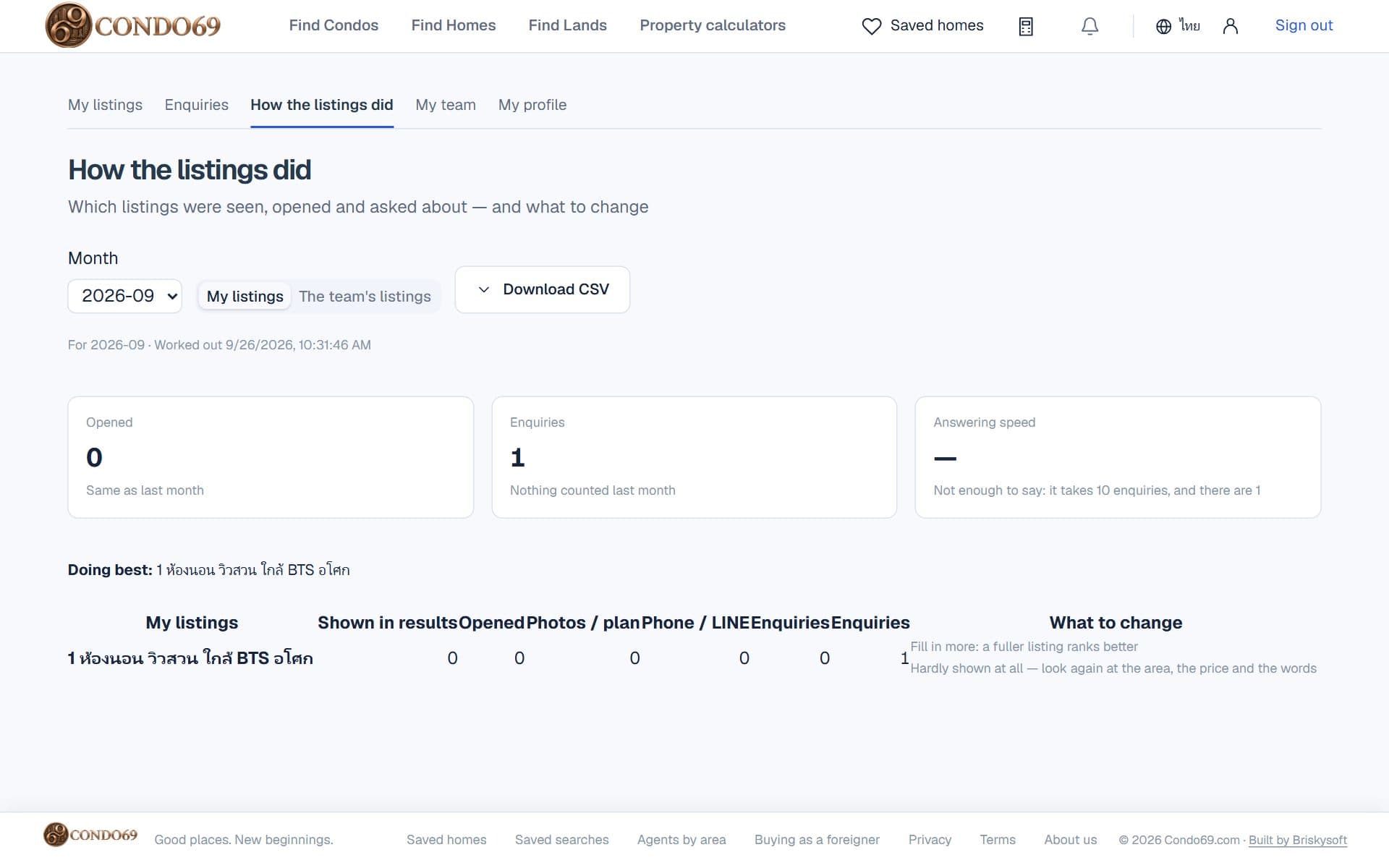
- «How the listings did»: views, enquiries and how fast you answered, month by month.
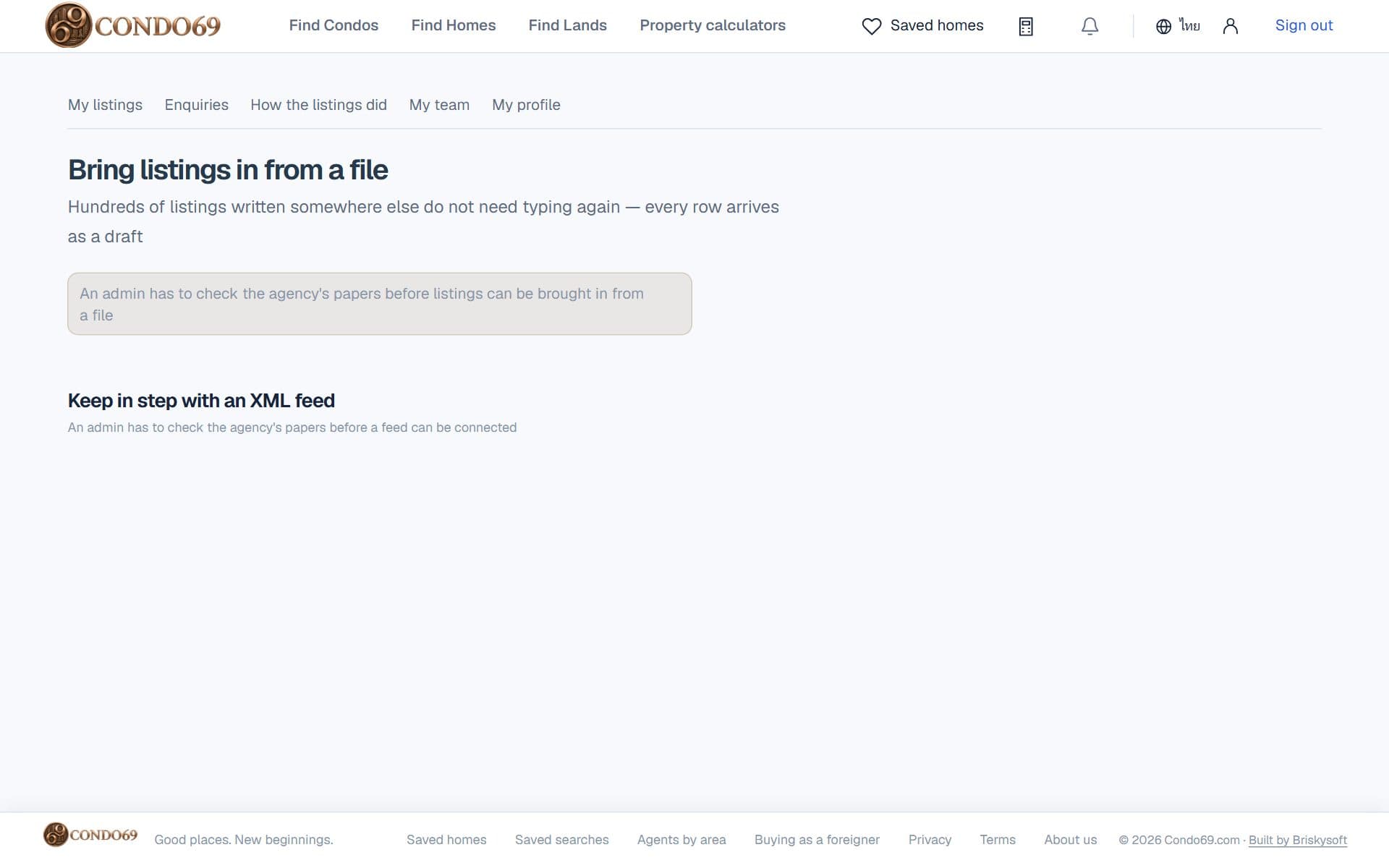
- «Bring listings in from a file»: upload a CSV or Excel file with the columns of the sample; each row becomes a draft to check before sending.
9Your account
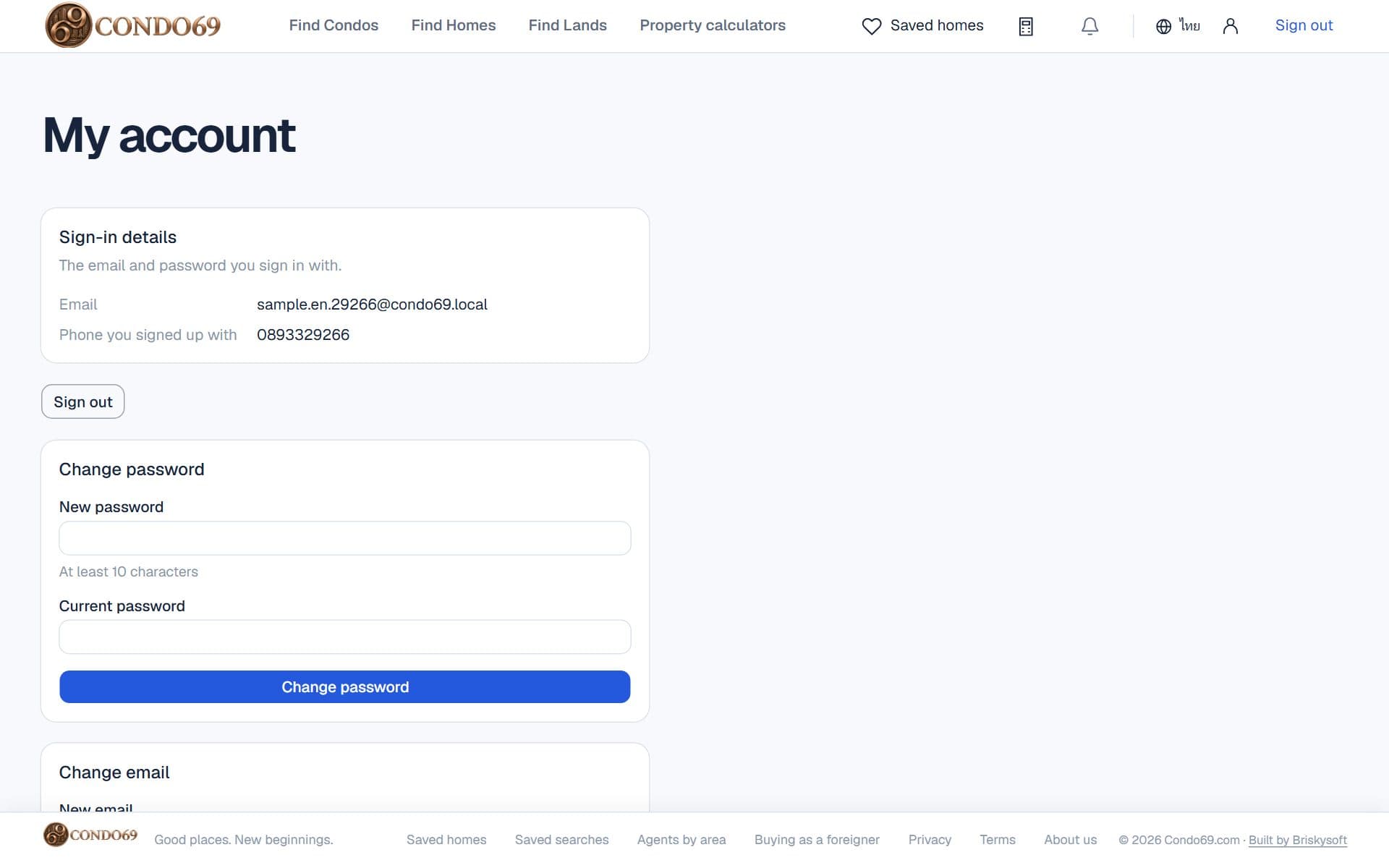
- Press «My account» at the top right to see your email and the phone you signed up with.
- Change the password with the current one (other devices are signed out) · change the email and confirm it with the code sent to the new one.